Netmo 2 is not visible after launch
If Netmo 2 is nowhere to be seen after launch, whether in the menu bar, in the Dock or as a window, you can force the app to start in desktop mode. That way you always have a window to use and configure the app.
- Quit Netmo 2 completely. If the app is nowhere to be seen, it cannot be quit normally. In that case, quit it as described in the article Activity monitor (found under Applications > Utilities). Look for “Netmo 2” in the list.
- Press and hold the Shift key on your keyboard.
- Launch Netmo 2 while holding Shift, for example by double-clicking it in the Applications folder.
- A dialog appears. Choose Start in Desktop Mode.
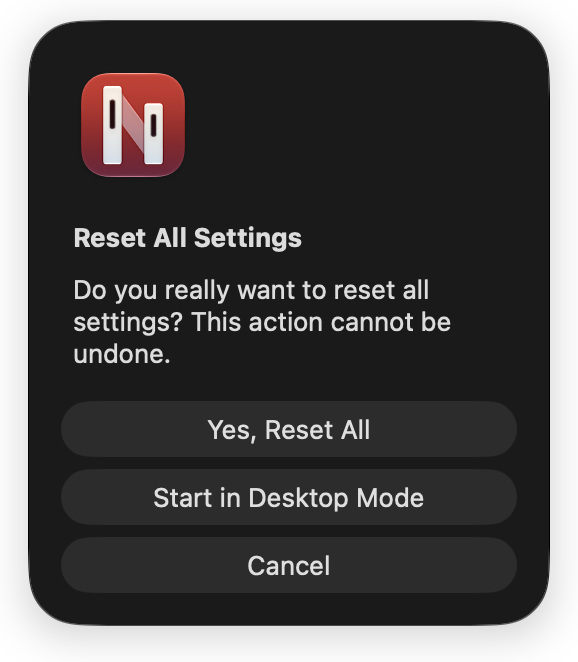
Netmo 2 now starts in desktop mode. This turns on both the menu bar icon and the Dock icon and does not reset anything else, so all your other settings are kept.
Adjusting the display again
In the General tab of Netmo 2’s settings there are two switches: one for the menu bar icon and one for showing Netmo 2 as a desktop app (Dock icon).
You cannot turn both off at the same time. If you turn the menu bar icon off, the Dock icon stays on automatically. This way you cannot lock yourself out of the app.
Important
This dialog also offers “Yes, Reset All”, which resets all settings. If you only want to start in desktop mode, make sure to choose Start in Desktop Mode. Cancel closes the dialog without changing anything. You can find more about resetting in the article Resetting Netmo 2.
If Netmo 2 is running but its icon is only missing from the menu bar, it may be hidden behind the menus of another app. This is normal macOS behavior, and the article Where is Netmo Classic? explains more.