
Clean Up Better Battery 2 (Reset Preferences)
Sometimes a simple Restart helps to solve problems. Try it. If not, let’s do a clean-up.
If you want to keep your battery history, back up the database first — see Backups. Then follow the steps below to delete the preferences folder.
Delete preferences folder:
- Open Finder
- Press and hold “Alt/Option” and choose “Go” and “Library” from the menubar
- Open the folder “Containers”
- Delete the folder “at.agross.battery2” OR the folder “Better Battery 2” (on macOS Big Sur and higher)
- Start Better Battery 2 again (the app creates new preferences files)
If you backed up the database before, you can now restore it — see Backups.
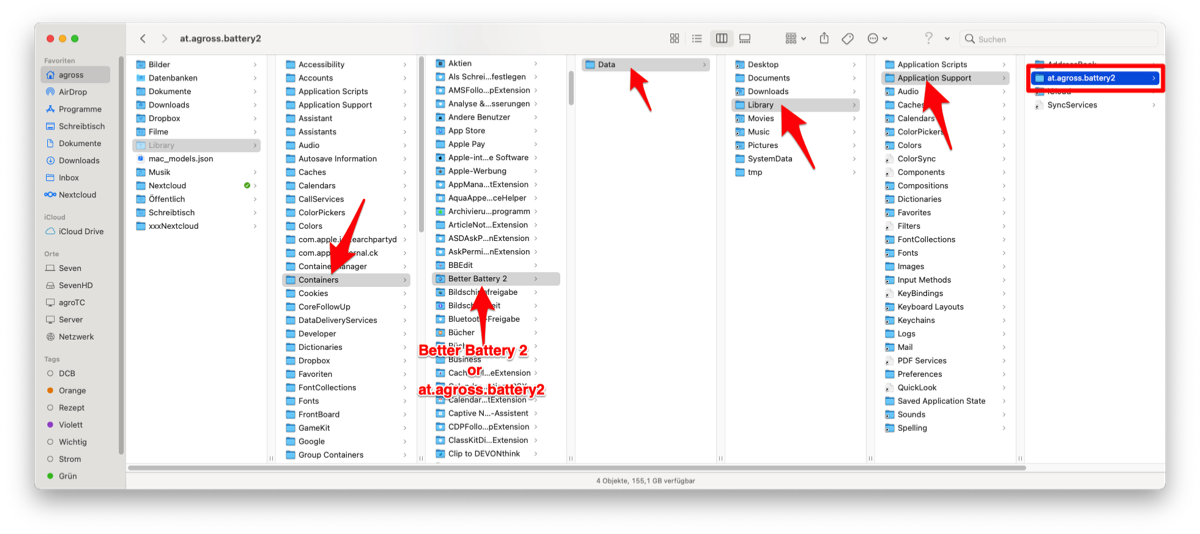
Content of the Library folder