Quick Start: up and running in 5 minutes
In Focus one you first capture everything in the Inbox, sort it later and bring only the most important things into Focus. These six steps take you through the whole workflow once.
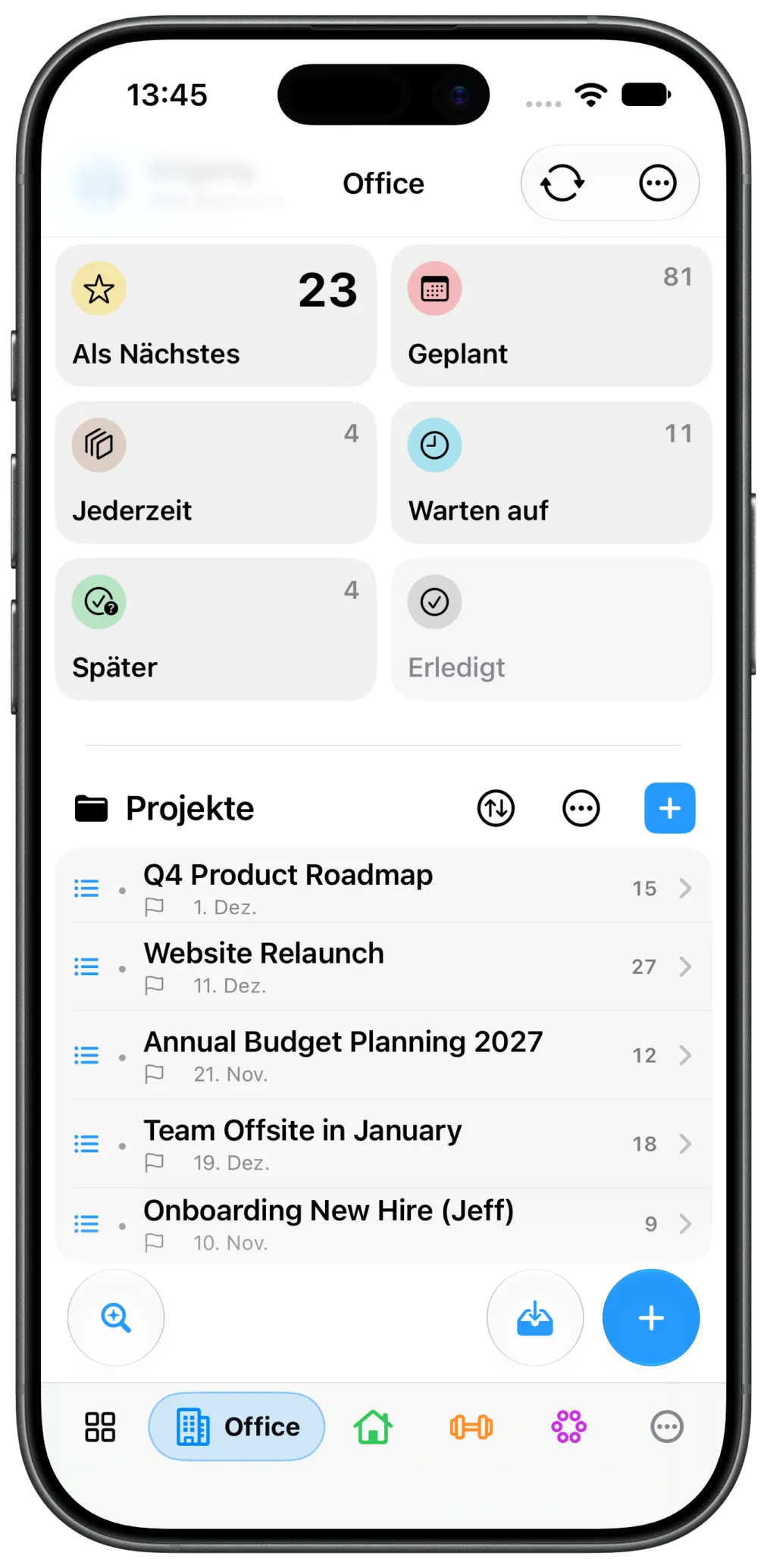
This is what the main screen looks like on the iPhone: at the top the standard lists such as “Next”, “Scheduled” and “Anytime”, below them your projects, and at the bottom the search, the plus for capturing and the area bar.
1. Capture your first task
Tap the plus and enter a title. Enter or the checkmark saves the task. It lands in the Inbox, without a project and without an area. The Inbox is your collecting place: nothing has to be planned yet.
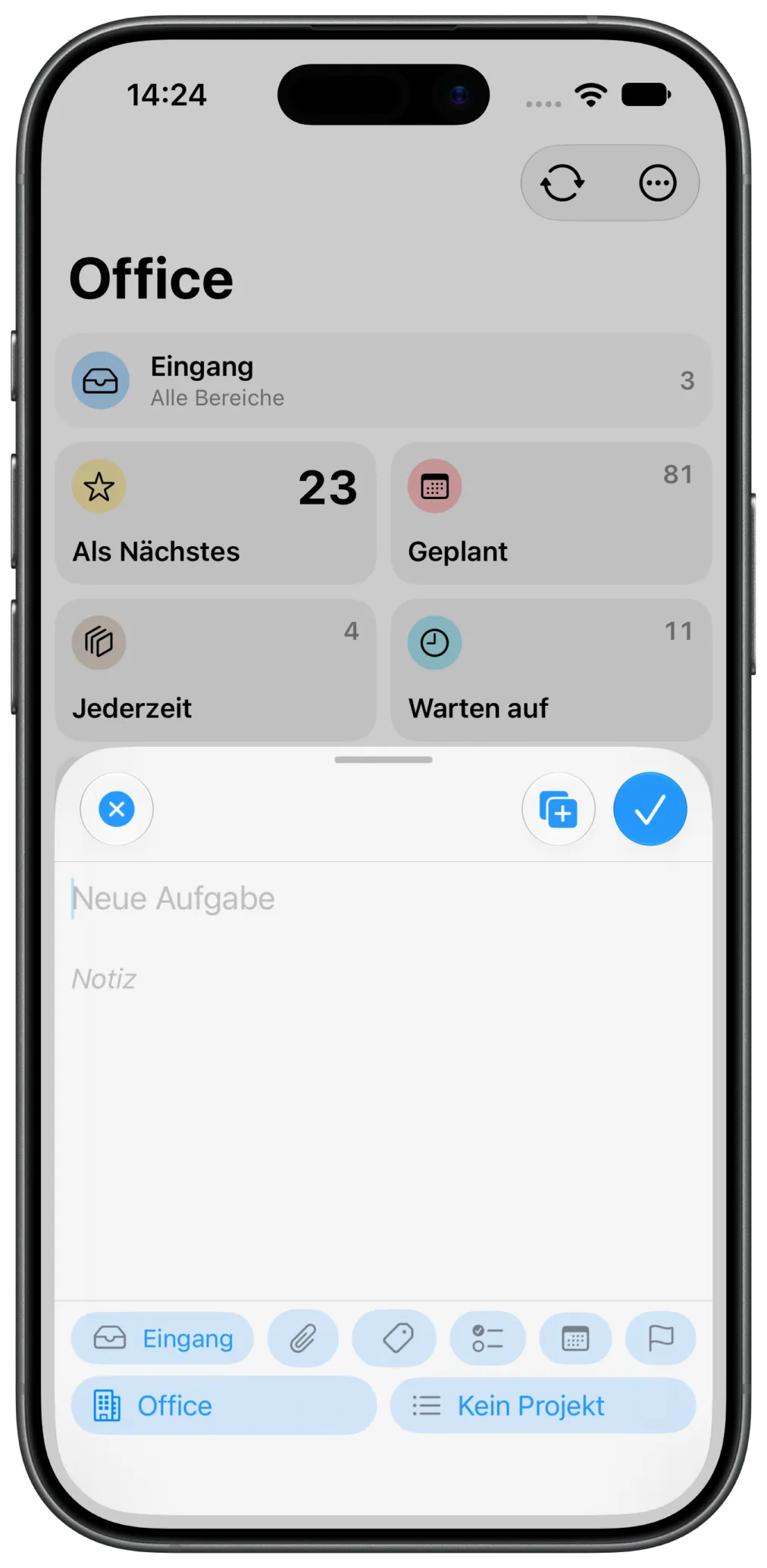
In Quick Add you enter a title and a note. The buttons below are optional: list, attachment, tags, checklist, scheduled completion date, deadline, plus area and project.
If you are in an area, it is carried over when you tap plus. If you are inside a list or a project, tapping plus carries over the list, the area and, where applicable, the project.
On iPad and Mac, the sidebar toolbar also has a button for a new task in the Inbox, no matter which list you are in. Here the area and project always stay empty (the list is Inbox).
2. Set up areas (optional)
Areas separate life and work areas such as Office, Home, Club, Studies or IT. On first launch there are (optionally) example areas and example tags that you can rename or delete. You create your own areas with Edit Areas: on iPhone, tap the ellipsis icon (…) in the area bar and choose Edit Areas. On iPad and Mac there is a dedicated button for it in the area bar at the edge, on the Mac also ⇧⌘A. There you give each area a name, a color and a star (favorite). You don’t have to use areas.
3. Process the Inbox
Open the task (tap or click the row) and assign it: to a list, a project, an area, a scheduled completion date. It is faster with the context menu (long-press, right-click on the Mac) or by swiping right (“Move list”).
4. Create a project
A project bundles tasks with a common goal. Give it a title and an area and choose parallel (all tasks freely selectable) or sequential (only the next step appears in “Next”). Tasks you put into a project initially sit in the “Anytime” list.
5. Focus
Mark the two or three tasks you want to concentrate on with Focus (swipe left or context menu). They appear in the Focus list. Tasks that are due and the next steps of sequential projects show up on their own in Next.
6. Check off
Check off the task. It moves to Completed.
Tutorial projects
Focus one comes with tutorial projects that you can try right away and delete later. Loading the tutorials is free. You find them under Settings → Tutorial Project → “Add Tutorial Projects”. The projects are loaded from the internet and are available in German and English. With “Reset Tutorial Settings” in the same section, you start over.
System requirements
iOS and iPadOS 17.6 or later, macOS 14.6 or later. The app is available in German, English, Spanish, French and Italian.
What next?
- The principle behind it: How Focus one works and Areas
- Capturing tasks faster: Capturing tasks, Setting up the widget, Siri and Shortcuts
- Switching from Apple Reminders: Import from Apple Reminders
- Differences between free and Pro: Free and Pro